To host a music quiz night, you need a good playlist, a way to play the songs without giving them away, and simple rules everyone gets in a minute. With Bopster you build the playlist in the Studio, print it as QR music cards (or skip the printing), and let Bopster Live play the songs while your guests guess the year, title and artist.
What you need to host a music quiz night
- A playlist with a theme your guests will enjoy.
- A phone or tablet running Bopster Live, and a decent speaker.
- Optional: printed Bopster cards, if you want something to hold and place on the table.
- Optional: a TV or Chromecast, and your guests' own phones for Live Together.
Step 1: Pick a theme and build the playlist
A theme makes the night feel planned. A few ideas: one decade, the soundtrack of the host's teenage years, film and TV songs, summer hits, or the favourite songs of the birthday guest.
Build it in the Studio. Import a playlist from Spotify, YouTube, Apple Music, Deezer or TIDAL, paste a list of songs, add them by hand, or describe the theme to Bopstarr and let him build it. No time at all? The Library has community playlists that are ready to play.
Want something bigger? With In the Mix you blend several playlists into one set, remove duplicates and space out the artists so the same band doesn't play twice in a row.
Step 2: Check the release years
Guessing the year is the heart of the game, so a wrong year is the fastest way to start an argument. Music services often show the date of a remaster or compilation instead of the original release. Run Yearify from the Studio's tools before the party, and check the changes it suggests. Read more in how to fix wrong release years.
Step 3: Print cards or play fully digital
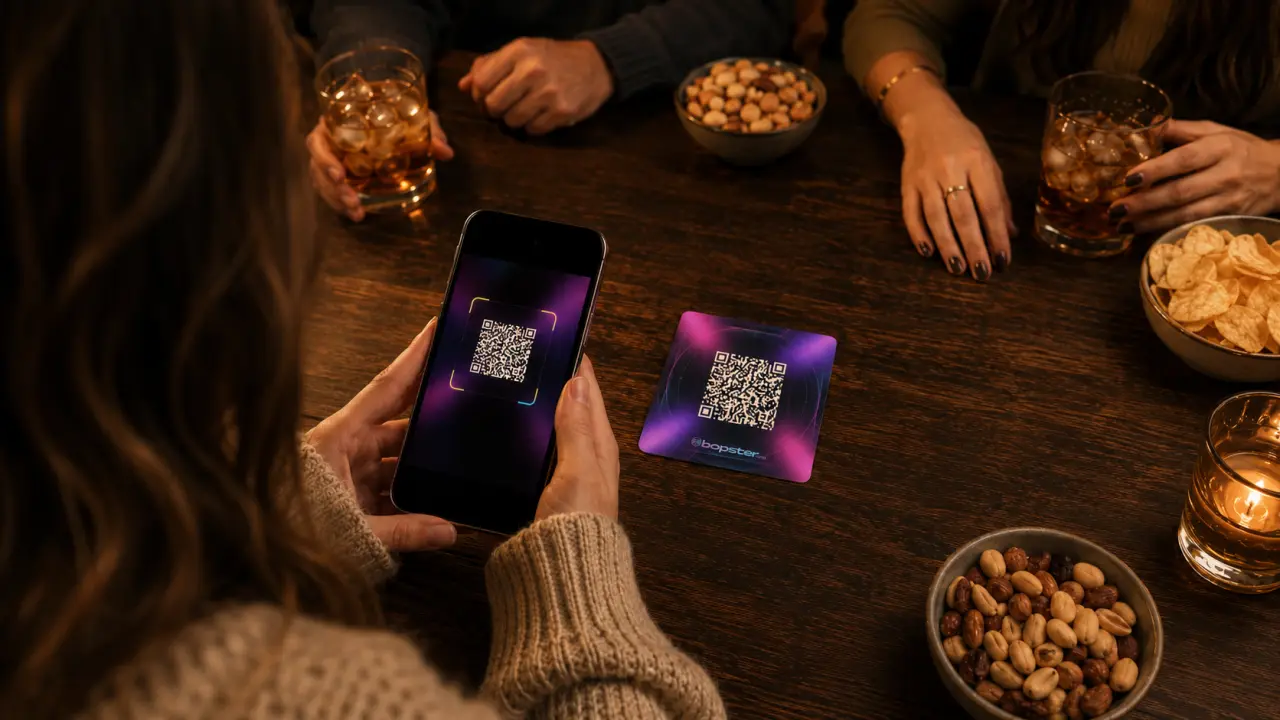
Printed cards. Open the Designer, choose a design, and pick Bopster QR Enhanced so the cards scan in Bopster Live without showing the song. Add the two-page player guide, print double-sided (flip on the long edge) and cut. The full walkthrough is in how to create your own music cards.
No printer? Load the playlist straight into Bopster Live and play from the screen. Everything else in this guide works the same.
Step 4: Set up the room
- Sound first. Connect a speaker to the phone or tablet that runs Bopster Live.
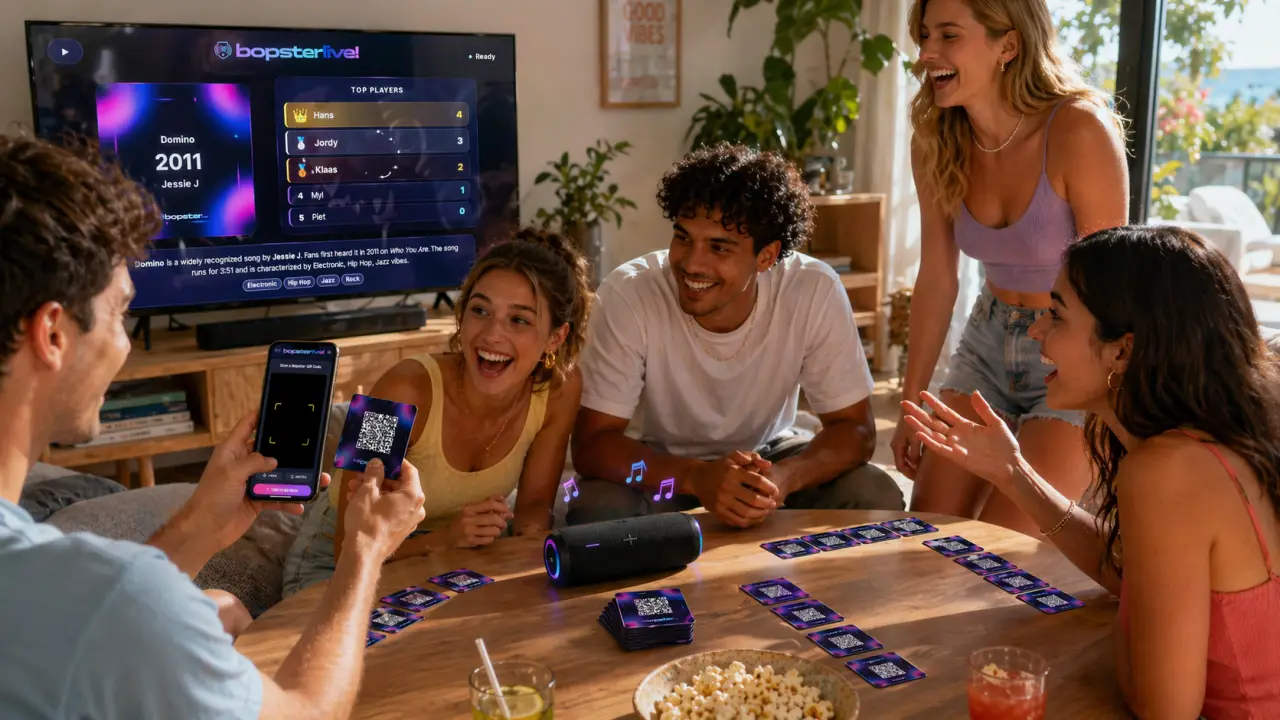
- Put it on the TV. Big Screen shows the current card, the session's QR code, the join code and the answer options on a TV or Chromecast.
- Let guests join. With Live Together, guests scan the QR code or type the join code and play on their own phones. The host controls playback and the reveal.
Step 5: Choose how to play
- Timeline with cards: players scan a card, guess, and place it on their own timeline of real cards on the table.
- Year guessing with Live Together: every player picks a year on their phone. The closest guess earns a point.
- Free Fill: the closest year guess gets the first chance to name the song or artist. Get it wrong, and another player can steal.
- Multiple Choice: three possible answers appear, and the closest year guess can earn an extra point by picking the right title or artist. Great for big or mixed groups.
The player with the most points wins. More detail on every mode is in how to use Bopster Live.
Host checklist
- Scan one card or play one song before guests arrive.
- Charge the host phone and keep a charger nearby.
- Decide up front how many rounds you play, or play to a target score.
- Keep one or two extra songs ready as a tie-breaker.
Hosting over the holidays? See our Christmas music quiz guide for festive tips.
Frequently asked questions
What do I need to host a music quiz at home?
A playlist, a phone or tablet with Bopster Live and a speaker. Printed QR cards, a TV and guests' own phones are optional extras that make it feel more like a game show.
Which game mode works best for a big group?
Live Together with Multiple Choice. Everyone guesses on their own phone at the same time, and the three answer options keep it quick and easy to follow for large or mixed groups.
Can I combine several playlists into one quiz?
Yes. In the Mix blends several playlists into one set, can remove duplicate songs and spaces out artists so the same one doesn't play twice in a row.