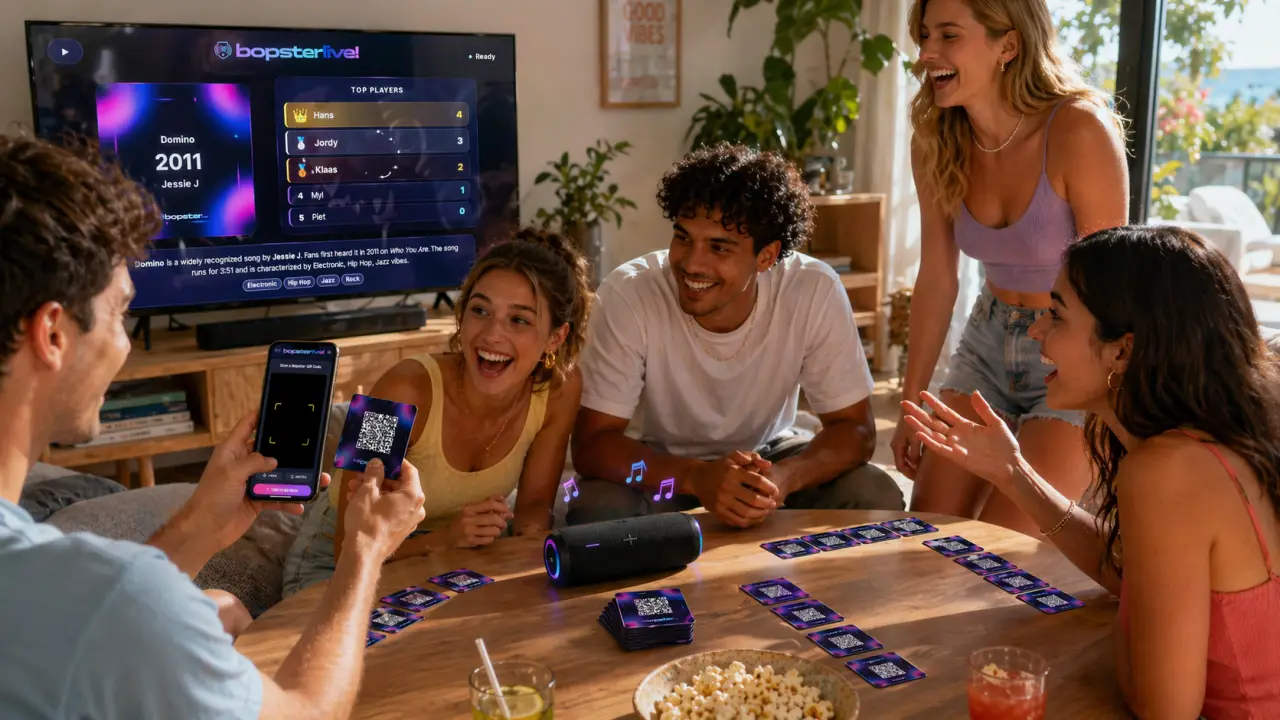
Bopster Live is the music player for your Bopster game. Scan a card or pick a playlist, and Bopster Live plays the song while the title, artist and year stay hidden until you reveal them. It runs in your browser, so there's nothing to install. With Live Together, every player can join and guess from their own phone.
This guide walks you through every screen: the first-time setup, playing and revealing songs, Live Together, game modes, the TV options and the settings.
What you need
- A phone, tablet or laptop with a modern browser. Open Bopster Live.
- Something to play: printed Bopster cards with QR codes (make them in the Designer), or a playlist from the Library. You don't need to print anything to play.
- A speaker for the music. A TV is optional but fun.
- For Live Together: a phone for each player. Players don't need an account.
Step 1: The first-time setup
The first time you open Bopster Live, a short setup wizard asks how you want to play. You can skip it with Skip Setup and change everything later in Settings.

- Playback. YouTube Conversion is recommended. Bopster reads the song from your Spotify, Apple Music, Deezer, Tidal or YouTube link and finds a playable version on YouTube. You don't need an account, you get the music video when you reveal, and it works with Big Screen and Chromecast. Other options are under Show other streaming options.
- Card style. Pick one or more digital card designs, or let Bopster shuffle them. Cards with a Bopster Enhanced QR code always keep their own design.
- Song clip. Skip long intros and stop automatically after the guessing window. Choose a clip style: a steady window, a random length, a random moment, a mix of both, clips that get shorter every round, or the full song.
- Game & scoring. Choose Live Together (everyone on their own phone), the Offline scoreboard (one device) or No digital scoring.
- Ready. Check your setup and tap Start Playing!
Step 2: Scan a card or choose a playlist
Next, choose how you want to play.

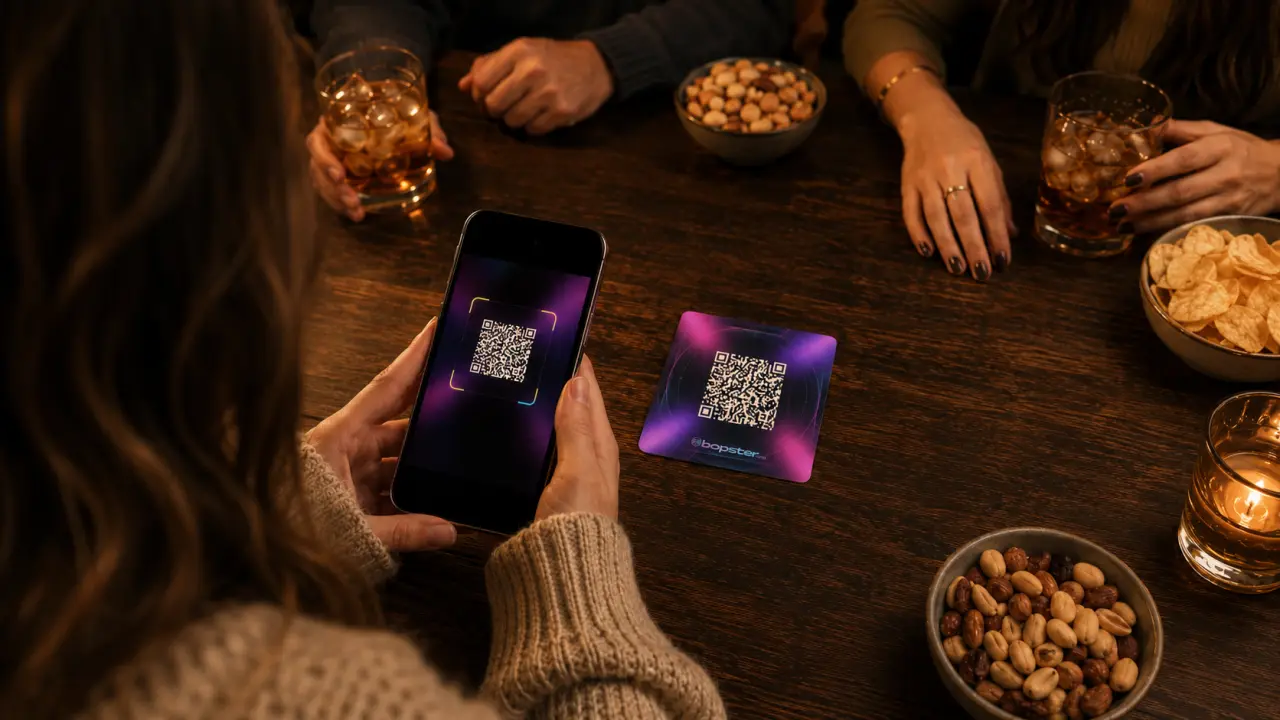
- Scan QR Code opens your camera. Allow camera access and hold the card steady in good light. The song loads straight away.
- Choose Playlist shows the published playlists. Search by name, user or genre, and sort by featured, newest or most songs. You can also start a playlist you built yourself in the Studio.
- Instant Game Night skips the setup: paste a playlist link or describe the music you want and let AI pick the songs.
Step 3: Play and reveal a song
Every song appears as a card with a QR code on the front. Nobody can see what's playing until you reveal it.

- Play song starts the clip. The buttons on either side rewind or skip 15 seconds.
- Reveal song (or tapping the card) turns the card over to show the title, the year and the artist. With YouTube playback, the music video plays blurred in the background.
- In a playlist, the arrows go to the previous or next song. When scanning, use Scan New Code for the next card.
- Music not playing? opens the song on YouTube. Only use it in an emergency: everyone will see the title.
Below the card are three tabs: Scoreboard, History and Settings. History lists the songs you played. Keep it closed during a round, because it shows the answers.
Step 4: Play Live Together on every phone
Live Together turns every phone into a game controller. Players join with a code, guess the year on their own phone, and the scores update everywhere at once.
Start a session
If you chose Live Together in the setup, the session is created for you. Otherwise, open the Scoreboard tab, choose Live Together and tap Create Live Together session.

- Players scan the QR code, or open together.bopster.app and type the six-character session code.
- They enter their name and tap Join session. They need no account; they just keep the page open.
- Under Host options you can set your own name and choose whether you guess along or only run the game. You can also play endlessly or set a fixed number of rounds, which ends with the final standings.
Play a round
Press Play song, and when the clip has played, press Reveal song. With Live Together, this starts the guessing round instead of showing the card.

- Guess the year. Players take turns. The controls unlock on each phone when it's that player's turn, and the first player changes every song. Each year can only be picked once.
- Bonus. If the bonus is on, the player with the closest year can win an extra point by naming the song or the artist. If they get it wrong, the other players get one try each to steal the point.
- Reveal. When the round is scored, tap Reveal card on all screens. The card, the year and the new scores appear on the host screen, every phone and the TV.

Step 5: Choose a game mode
Open the Scoreboard tab and scroll to Game controls. With Live Together, year guessing is always on. Turn on Bonus Title Guess to pick how players name the song:

- Free-fill: the closest player types the title or the artist.
- Multiple choice: everyone gets three titles and races to tap the right one. The fastest correct answer wins. You choose how long players have to answer. The other choices come from the playlist and the song database; donators can let the Bopster AI DJ come up with them.
- Sing It Back: the closest player hears a few lines, the music stops, and they sing or say the next two lines into their phone's microphone. Bopster scores it automatically, up to 4 points. The recording isn't saved. If a song has no suitable lyrics, that round uses Free-fill.
Playing on one device instead
Choose Guess on this phone in the Scoreboard tab to keep everything on one device. Add players or teams with a name and starting score, then use + and − to change the scores. You can still turn on year guessing and the bonus question; players pass the device around to guess. These scores are saved in that browser only.
Step 6: Put Bopster Live on your TV
Tap the TV button in the top-right corner of the song card. Your phone stays the remote control, and the TV shows a clean view for everyone.

- Chromecast: cast to a Chromecast or compatible device on the same network.
- Big Screen: create a secure display link and open it in another browser window, share that window on a call, or connect a laptop to the TV. You can also open bigscreen.bopster.app in your TV's browser and enter the TV session code. Press Start Big Screen once so the browser allows sound.

Step 7: Fine-tune the settings
The Settings tab holds everything from the setup and a few extras:

- Auto-stop and clip style: where the song starts and how long it plays.
- Card design: the digital cards Bopster shows.
- Video reveal and Playback version: show the blurred music video on reveal, and choose between music videos and album audio.
- Live Lyrics Display (beta): show synced lyrics on Bopster Live, Chromecast and Big Screen after the reveal.
- Streaming source: YouTube Conversion, Spotify Basic (short previews unless you're logged in to Spotify Premium in the same browser), or Tidal for HiFi playback with a Tidal account. Spotify Advanced is not open to new users right now.
- Restart setup wizard and Reset all settings if you want a fresh start.
Want Bopster Live on your home screen? Use Install Bopster Live App in Settings. On an iPhone, tap Share and then Add to Home Screen.
Ready for your first game?
Make your own cards from any playlist in the Studio and print them with the Designer, or open Bopster Live and start with a playlist right away. If some years look wrong, fix them first with Yearify. Want the full card-making steps? Read how to create your own music cards.
Frequently asked questions
Do I need an app or an account to use Bopster Live?
No. Bopster Live runs in your browser. Players who join Live Together don't need an account either; they open together.bopster.app and enter the session code.
Can I play Bopster Live without printed cards?
Yes. Choose Choose Playlist and play any published playlist. The song card appears on screen and you reveal it with one tap.
Why does Bopster Live ask for my camera?
To scan the QR codes on your cards. The camera is only used for scanning. You don't need it when you play from a playlist.
How does Live Together scoring work?
Players guess the year one at a time and the closest guess wins the point. With the bonus on, that player can earn an extra point by naming the song or artist, and the others can steal it if they miss.
What if a song doesn't play or the wrong song plays?
Check your internet connection first. With YouTube Conversion, Bopster looks for the closest match on YouTube, and some videos are blocked in certain countries. You can switch the source for a single song with the icons on the card, or open it on YouTube as a last resort.
Can I show Bopster Live on my TV without a Chromecast?
Yes. Use Big Screen: open bigscreen.bopster.app in your TV's browser and enter the code, or open the Big Screen link on a laptop connected to the TV.