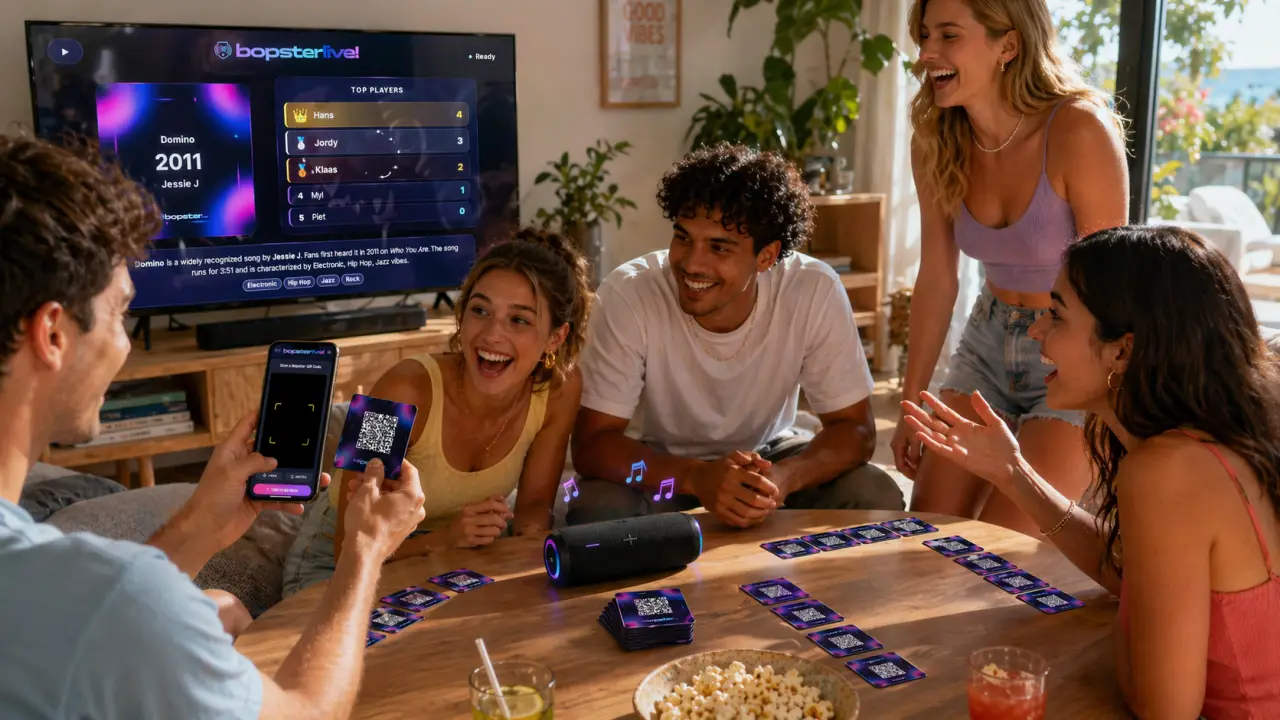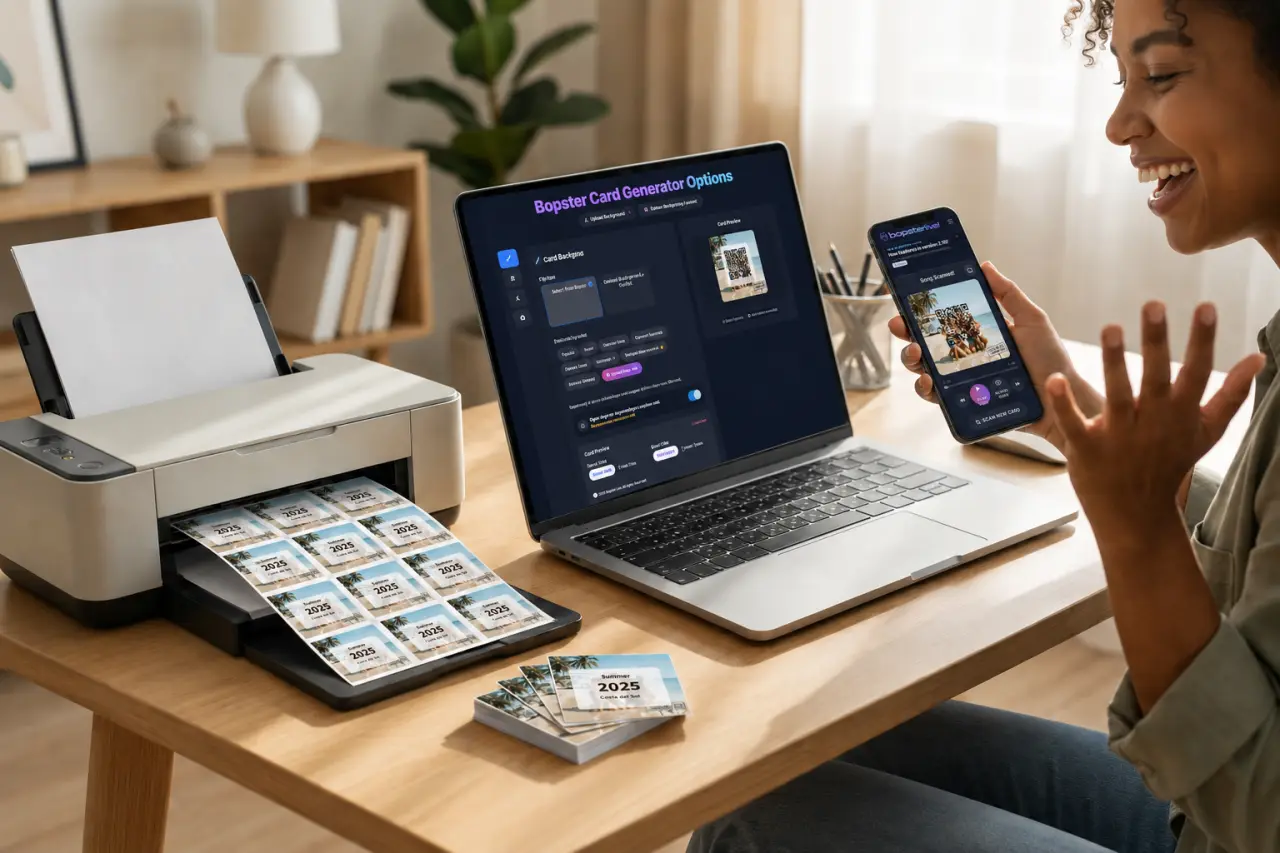
With Bopster you can turn any playlist into your own HITSTER-style music cards: a QR code on the front, and the year, artist and title on the back. You build the playlist in the Studio, design the cards in the Designer and play with Bopster Live. Building, printing and playing are free.
This guide follows one playlist from start to finish, from importing the songs to holding a printed deck.
What you need
- A playlist link from Spotify or YouTube (Apple Music, Deezer and Tidal work too), or just a few song ideas.
- A computer works best for designing. The Studio and Designer also work on a phone.
- A printer that can print double-sided, and thick paper or card stock.
- No account to start. Create a free account if you want to save your playlists and designs.
Step 1: Import your Spotify or YouTube playlist in the Studio
Open the Studio and click Add songs. The first time, a short tour shows you around; you can skip it and replay it later with Tour.

- Choose Import playlist and paste the link to your playlist. Playlist, album and track links are recognised automatically.
- Click Import playlist. Every song comes in with its link, so each QR code knows what to play.
Imports go up to about 2,000 songs from Spotify, around 200 from YouTube, 1,000 from Tidal, 400 from Deezer and 300 from Apple Music. The playlist must be public. See supported services for everything per service.
No playlist yet? The Add songs window has three other ways in:
- Bopstarr AI: describe a vibe, such as "80s songs the whole room can sing along to", and Bopstarr builds the playlist with real songs.
- Bulk import: paste a list, one song per line, and Bopster finds the links and years.
- Add manually: add one song at a time. Leave the link and year empty and Bopster fills them in.
You can also start from a ready-made list: open Discover playlists in the Studio, or browse the Library, and copy a playlist to make it your own.
Step 2: Check the release years with Yearify
The year is the heart of the game, and streaming services often show the year of a remaster or re-release. Click the Yearify button above your list to check every song.

- Leave Enhanced Check on: it also checks other sources for songs that aren't in the main database.
- Click Start Analysis and wait a moment. You see the years appear as each song is checked.
- Click Apply & return to go back to your playlist with the corrected years.
Imports from YouTube, Deezer and Apple Music don't bring release years with them, so always run Yearify on those. A song Yearify can't place keeps an empty year: click the year next to it and type it in.
Step 3: Tidy up your playlist
Your playlist now shows every song with its cover, year and link. A badge at the top tells you how many songs still have no year.

- Give your playlist a name at the top, so you can find it again.
- Search, filter on songs without a year or link, sort by year or shuffle. Drag a song by its grip to move it; undo is always there.
- Type a year straight into the year field. To change a title or artist, use the menu at the end of the row or Edit mode under Tools.
Tools holds the helpers that clean up a whole list in seconds:

- Remove duplicates spots songs that are in the list twice.
- Mass-edit year sets, shifts or clears the year of many songs at once.
- Bulk edit text finds and replaces text, removes (brackets) such as "2005 Remaster", tidies spacing or applies Title Case.
- Get covers fetches album covers, and Fill missing links looks up every missing link and year.
- Edit mode lets you edit right in the list; Select lets you change or remove several songs together.
Step 4: Save your playlist
Without an account, the Studio keeps your work in this browser while you build. Sign in and click Save to keep the playlist in your account. Under Properties you set the name, description, genre and cover, and More lets you publish the playlist to the public Library. You decide whether it's private, link-only or public.
Step 5: Design your cards in the Designer
Click Print cards. The Designer opens with your playlist; every song becomes one card, and every change shows up on the card straight away.

- In the Style pane, choose the card size: Square 64 × 64 mm or Classic 90 × 55 mm.
- Pick one or more card designs. Bopster mixes your picks across the deck, and the themes run from neon to Christmas.
- Use the switch above the card to see the front and the back, and the shuffle button to check that long titles fit.

You can also drag the text or the code on the card to move it, and scroll on it to resize it. Quick keeps it to the choices that matter; Full control adds every detail. Supporters can upload their own artwork or let the AI Designer draw the card.
Step 6: Choose the code and the text

In the Code pane you choose what a scan does:
- Bopster QR Enhanced (recommended): carries the song details too, so Bopster Live can show the full card and use Live Together, Chromecast and Big Screen. Basic phone scanners may not read it.
- Bopster QR Standard: just the link to the song. It scans in any app, but Bopster Live can only play the song.
- Spotify Scannable Code: scanned from the Spotify app, for Spotify links only. It doesn't work in Bopster Live.
In the Text pane you choose the font, colours and sizes for the year, the artist and the title. Pick a special font if your songs use another alphabet.
Step 7: Make the PDF and print your cards
Open the Print pane and choose the paper: A4, A3, or one card per page. Leave Mirroring on, so the backs line up with the fronts when you print double-sided. Turn on Add Cut Lines if you want lines to cut along. Add a player guide puts two pages with print tips and the game rules in front of your cards.
Click Make the PDF. The PDF downloads right away: a page of fronts, then a page of backs.

- Print double-sided, flipping on the long edge, at 100% (not "fit to page").
- Test one sheet first: hold it up to a window to check that every code sits behind its answer.
- Use card stock of 160–250 g/m². It shuffles well; card sleeves make the deck last longer.
- Cut the cards with a paper trimmer, or a ruler and a craft knife.
Step 8: Play your cards with Bopster Live
Open Bopster Live on a phone, scan a card and the song plays while the answer stays hidden. Want to play right away without printing? Click Play in Bopster Live in the Studio. Everything about playing, including Live Together, where everyone guesses on their own phone, is in our Bopster Live guide.
Enjoying Bopster? You can support it on Ko-fi.
Frequently asked questions
Is Bopster free?
Yes. Building playlists, designing, downloading and printing your cards and playing in Bopster Live are free. A few extras, such as your own artwork and the AI Designer, are for supporters.
Can I make music cards from a YouTube playlist?
Yes. Paste the YouTube playlist link in the Studio under Add songs. YouTube doesn't share release years, so run Yearify afterwards to fill them in.
How many songs can I import at once?
Up to about 2,000 songs from Spotify, around 200 from YouTube, 1,000 from Tidal, 400 from Deezer and 300 from Apple Music. The playlist has to be public.
Why are some release years wrong?
Streaming services often list the year of a remaster or re-release. Yearify in the Studio checks each song and finds the original release year; you can always type a year in yourself.
What paper should I print the cards on?
Card stock of 160–250 g/m² works well. Print double-sided, flipping on the long edge, at 100%, and test one sheet before printing the whole deck.
Do I need an account?
No, you can start straight away. Create a free account if you want to save your playlists and card designs.
HITSTER is a trademark of its owner. Bopster is an independent tool for making your own music cards and is not affiliated with or endorsed by HITSTER.